# Installation
Module
## 1. Extract the Archive
Your first step is to extract the archive.
Within the resulting folder you will see the following strucure:
* dist (folder)
* scripts (folder)
* web.vt (file)
The `dist` folder contains the example project that illustrates how to use GraffitiSuite, as well as the compiled `GraffitiSuiteWeb.xojo_library` file.
## 2. Copy the Library File
To use GraffitiSuite in your project, you must copy the `GraffitiSuite*.xojo_library` file to either your destination project's directory or your Xojo Plugins folder.
Once complete, restart the Xojo IDE.
It is recommended that you place the library file in project directories rather than the plugins folder in order to assist you in maintaining version-specific setups for your projects.
## 3. Build Steps
**This is one of the most important steps to getting GraffitiSuite Web Edition up and running in your project. Without this step your project will encounter NilObjectExceptions when debugging or built while there are GraffitiSuite classes present.**
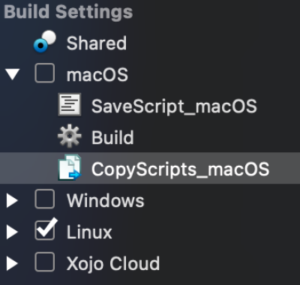
Right-click the target platform under Build Settings in the project navigator and select Build Step > Copy Files
Drag the Copy Files object under “Build” step for the target platform.
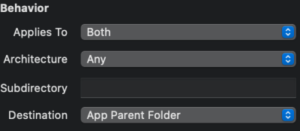
Select the Copy Files object, and drag the **scripts** folder from the download in to the center pane of Xojo.
Repeat for each desired platform – you must have a build step for both **debug** **and target platforms**. If you are building on macOS and will deploy to Linux, you **absolutely must** add a Copy Files build step for both macOS and Linux.
|  |  |
| --- | --- |
If you run in to an issue where the scripts folder is not being copied to the build directory on Linux, you can use the below Build Script to perform the copy operation after the Build step.
```
CopyFiles<span class="br0">(</span><span class="st0">"scripts"</span>, currentBuildLocation<span class="br0">)</span>
<span class="kw1">Sub</span> CopyFiles<span class="br0">(</span>source <span class="kw1">as</span> <span class="kw2">string</span>, destination <span class="kw1">as</span> <span class="kw2">string</span><span class="br0">)</span>
<span class="kw1">dim</span> cmd <span class="kw1">as</span> <span class="kw2">string</span> <span class="sy0">=</span> <span class="st0">"cp -rf "</span><span class="st0">"$PROJECT_PATH/"</span> <span class="sy0">+</span> source <span class="sy0">+</span> <span class="st0">""</span><span class="st0">" "</span> <span class="sy0">+</span> destination
<span class="kw1">call</span> DoShellCommand<span class="br0">(</span>cmd<span class="br0">)</span>
<span class="kw1">End</span> <span class="kw1">Sub</span>
```
## 4. Registration
You can refer to the App.Opening event handler for an example of registration that uses a `.env` file outside your project directory. If your repository is private and always will be, you may paste the registration code directly as instructed in the comments within the code copied from the Registration Keys page.
## Issues in Deployment not seen in Debug
This is a common issue when not updating the scripts directory on your server, especially when using the CDN functionality. Your first step when you see a problem in a deployed app that you did not experience in debug should be to verify that your scripts directory on the server is fully up-to-date.
The next most common cause is browser caching. You should always clear your browser cache, either for your deployed site or all sites, after making changes to the scripts folder. The script files are cached by the browser and you may experience issues with your project. Steps to do so may be found in [this article](https://www.pcmag.com/article/333441/how-to-clear-your-cache-on-any-browser) by PCMag.
## Requirements
Classes or modules that are required for all (or, at least, multiple) products are included in the Required folder, but some products may rely on one another. If you wish to breakdown GraffitiSuite to include only those things you need, preserve the Required folder and delete those products you don’t think you need one at a time, hitting Runafter each until you have sufficiently narrowed the contents.
